
How to report a bug from the Hublead Chrome extension
Record the issue from the extension sidebar and send it with a short description, so our team gets the technical data to fix it.
On this page
If something is not working as expected, you can report a bug directly from the Hublead Chrome extension. This allows our team to receive all the technical information needed to fix the issue quickly.
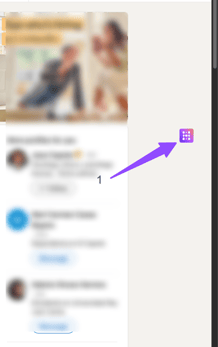
Step 1. Open the Hublead extension
Click on the Hublead icon in your Chrome toolbar to open the extension sidebar.
Step 2. Open the bug report tool
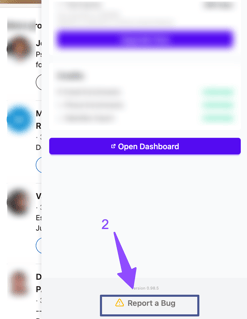
Scroll to the bottom of the sidebar and click Report a Bug.
Step 3. Record the issue
Click Start Recording.Then reproduce the issue exactly as it happens.
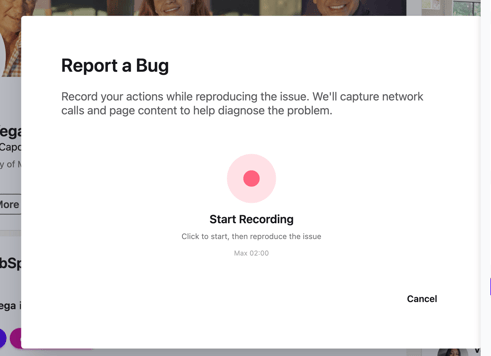
The tool will record:
- Your actions
- Network calls
- Page context
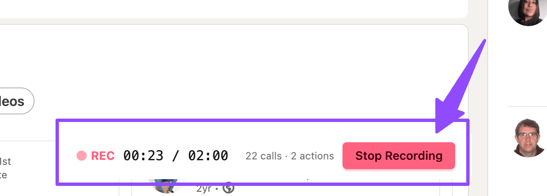
You can record up to 2 minutes.
Click on "Stop Recording" at the bottom to finish
Step 4. Add a description
After you stop the recording, a form opens.
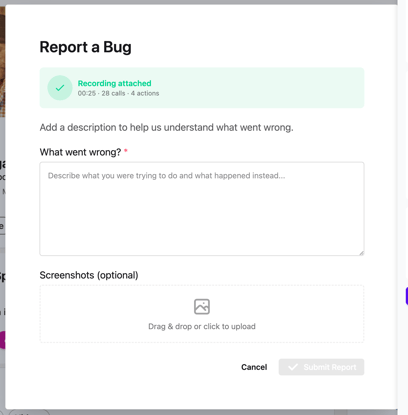
In What went wrong?, explain:
- What you were trying to do
- What happened instead
You can also attach screenshots if needed.
Step 5. Submit the report
Click Submit Report.
Your report will be sent to our technical team with the recording and all technical data needed to investigate.
Tips to help us fix it faster
- Start recording before the issue happens
- Follow the full flow that leads to the bug
- Explain the expected behavior vs the actual behavior
What happens next
Our team will get a notification and analyze your report and contact you if we need more information or once the issue is fixed.
Thank you for helping us improve Hublead.
Updated 30 October 2026