
LinkedIn message templates
Insert, create and manage message templates in LinkedIn and Sales Navigator, for connection notes and ongoing conversations.
On this page
- Chatper 1 - LinkedIn
- 1.1 Connection request (invitation note)
- Step 1: Open the invitation note
- Step 2: Insert a template
- Step 3: Personalize quickly
- 1.2 Inbox / Direct message (ongoing conversations)
- Step 1: Open the LinkedIn chat
- Step 2: Use a template (or create one)
- Step 3: Send
- Chapter 2 - Sales Navigator (SN)
- 2.1 Connection request (invitation note)
- Step 1: Open the invitation note
- Step 2: Insert a template
- Step 3: Personalize, then send
- 2.2 Inbox / Direct message (ongoing conversations)
- Chapter 3 - Create, edit, and manage templates (LinkedIn or Sales Navigator)
- Step 1: Access Template Creation
- Step 2: Build Your Template
- Step 3: Save and Use
- Browsing and Managing Templates
- Template Organization Tips
Chatper 1 - LinkedIn
1.1 Connection request (invitation note)
Step 1: Open the invitation note
- Go to a profile you want to connect with
- Click Connect
- Click Add a note
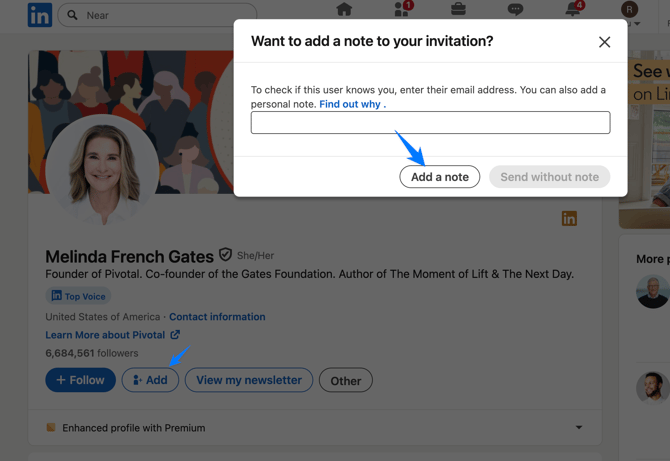
Step 2: Insert a template
- Click use a template
- Select an existing template (or create one, see the “Create a Template” section below)
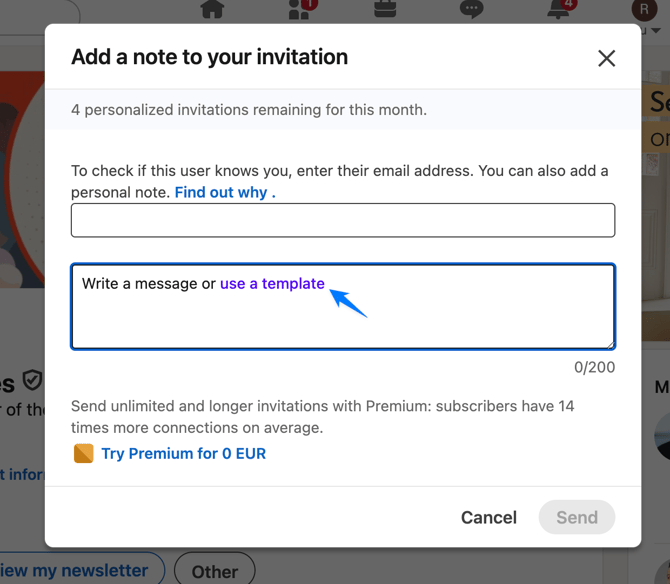
Step 3: Personalize quickly
- Adjust 1–2 lines to match the context (mutual connection, event, shared interest)
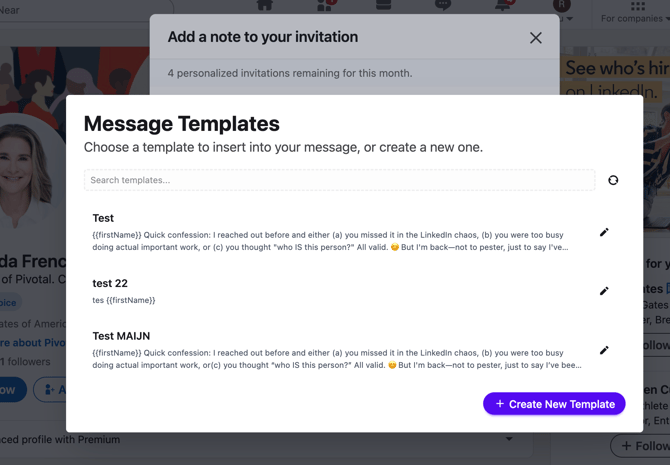
- Send the invitation
1.2 Inbox / Direct message (ongoing conversations)
Step 1: Open the LinkedIn chat
You can open the chat window either:
- from the Messenger, or
- directly from the contact profile
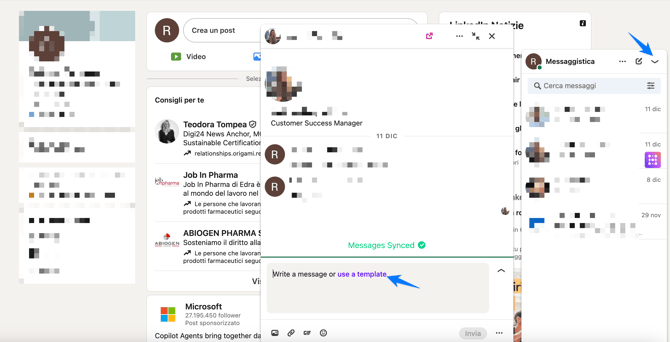
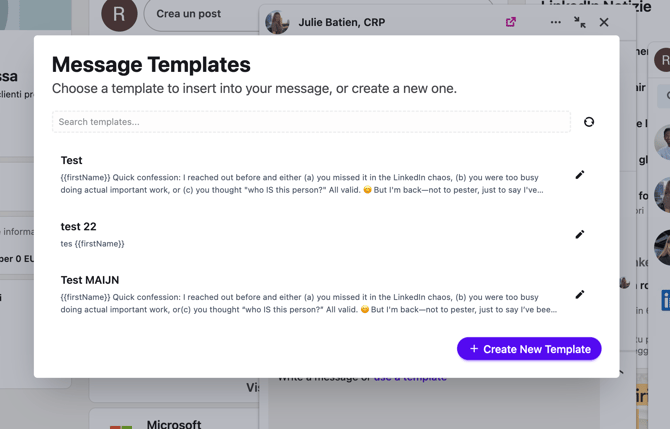
Step 2: Use a template (or create one)
- Click Use a template and pick one, or create a new template (see Chapter 3)
Step 3: Send
- Review the inserted text and send your message
Chapter 2 - Sales Navigator (SN)
2.1 Connection request (invitation note)
Step 1: Open the invitation note
- Start a connection request from Sales Navigator
- Click Add a note
Step 2: Insert a template
- Click Use a template
- Select a template (the library is the same as LinkedIn)
Step 3: Personalize, then send
- Adjust as needed, then send the invitation
2.2 Inbox / Direct message (ongoing conversations)
In Sales Navigator messages (and InMail where applicable), the workflow is the same:
- Open the conversation thread
- Click Use a template
- Select a template and send
Chapter 3 - Create, edit, and manage templates (LinkedIn or Sales Navigator)
Step 1: Access Template Creation
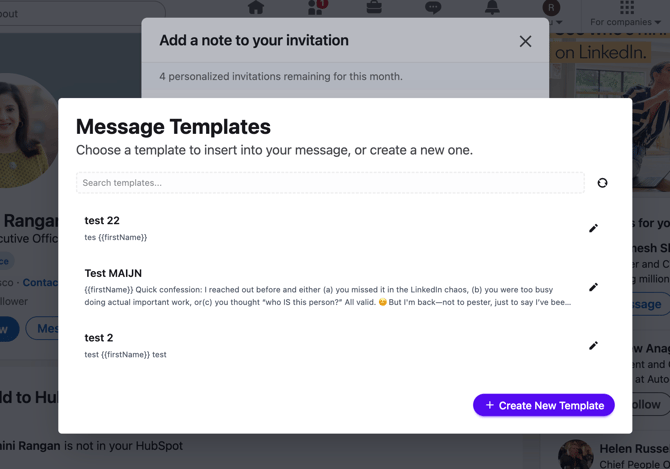
When you're in the "Add a note to your invitation" window, click the "use a template" link. This opens the Message Templates dialog where you'll see:
- A search bar to find existing templates
- A list of your saved templates
- A "+ Create New Template" button at the bottom
Step 2: Build Your Template
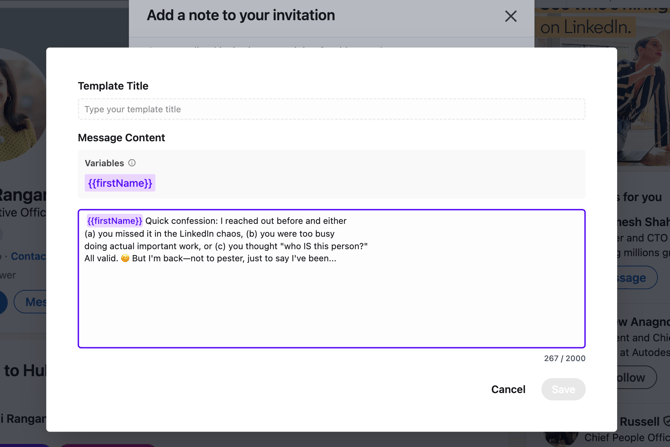
Click "+ Create New Template" to open the template editor, which includes:
Template Title
- Give your template a descriptive name (only you see this)
- Example: "CEO Outreach," "Industry Event Follow-up," or "Mutual Connection Intro"
Message Content
- Write your message in the text field (up to 2000 characters)
- Use the variable for personalization
- The variable appears as a purple tag:
Personalization Variables
Currently, LinkedIn provides the variable, which automatically inserts the recipient's first name when you use the template. In your message, it appears like this:
When sent, "" becomes "Yamini" or whatever the recipient's first name is.
Step 3: Save and Use
- Click "Save" to add the template to your library
Browsing and Managing Templates
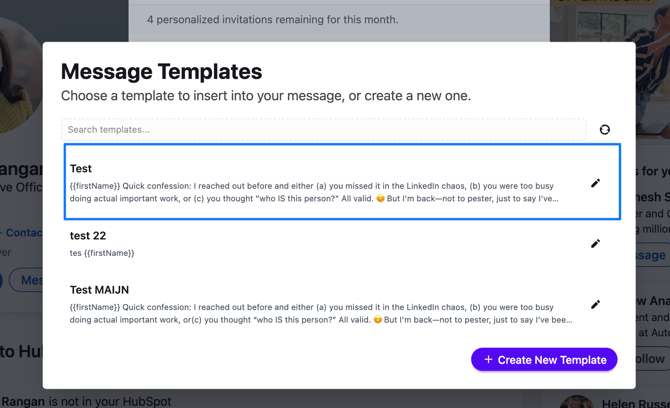
In the Message Templates dialog, you'll see all your saved templates with:
- Template name (your title)
- Preview of content (first line or two)
- Edit icon (pencil) - to modify the template
- Search function - to quickly find templates by name or content
Template Organization Tips
Since you can create multiple templates, consider naming them by:
- Use case: "Cold Outreach," "Warm Intro," "Event Follow-up"
- Audience: "C-Suite," "Mid-Level Manager," "Peer Connection"
- Campaign: "Q4 Partnership," "Conference Networking," "Product Launch"
Updated 30 October 2026